Measure the place the screen will occupy
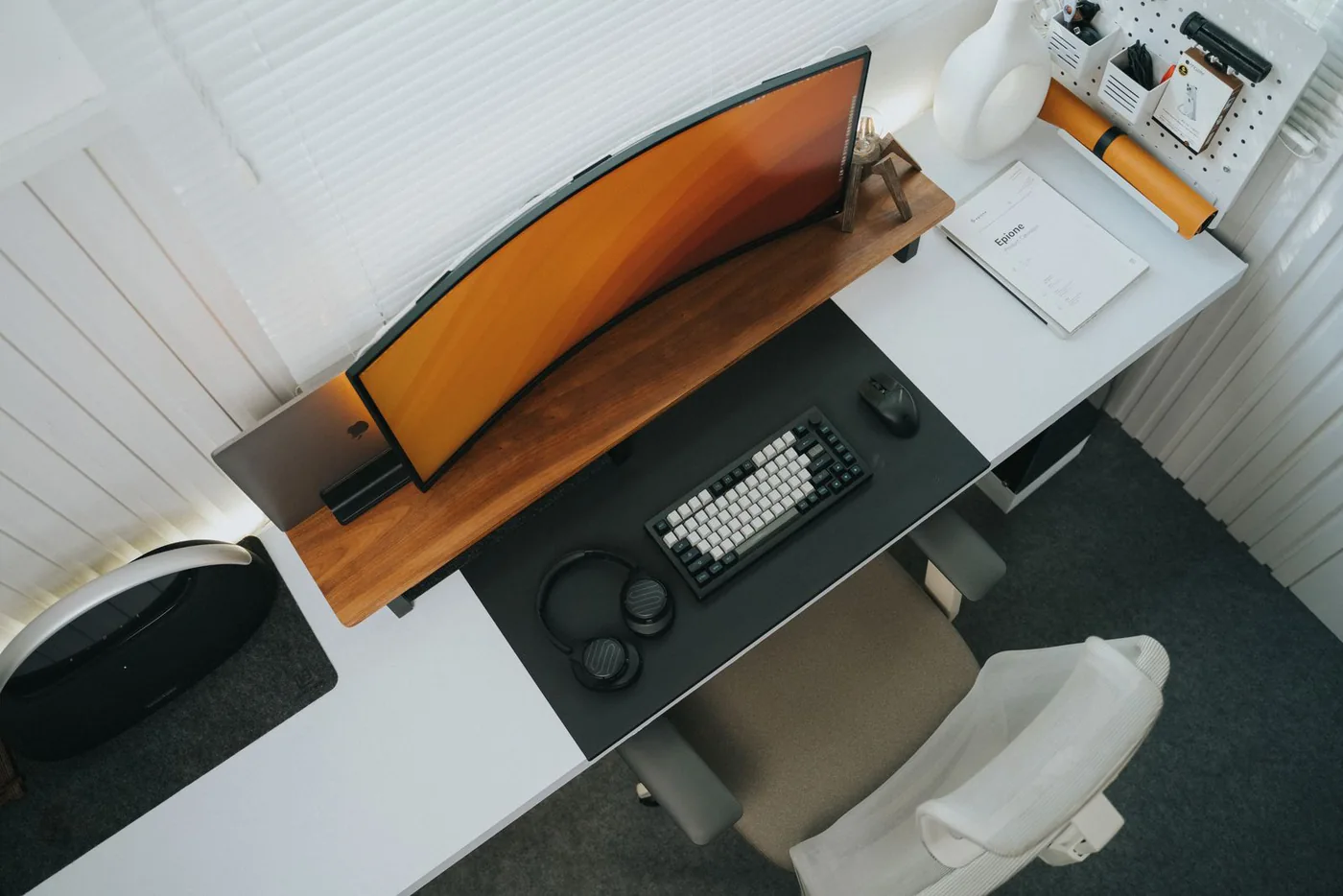
Imagine a home office squeezed into the corner of a bedroom. A new monitor promises more room for documents, but its stand could consume the space where you write notes. Measure the desk width and depth, then mark a likely stand position with paper. Include the distance between the screen and your normal seated position, plus any shelf above it. A monitor is a substantial object that stays in the room even when work ends. Choosing its physical arrangement before comparing specifications can prevent an expensive screen from becoming the wrong piece of furniture.
Choose for the work on the screen
List the windows you actually need side by side: a document and reference page, a spreadsheet and email, or a creative tool and preview. More pixels can provide flexibility, but text size and operating-system scaling determine how useful that space feels. Do not assume the highest resolution is automatically the clearest choice at every size and viewing distance. Check how your own laptop handles external displays and scaling. If you can see a comparable screen in person, open text at a comfortable size rather than judging only a bright sample video. Everyday reading is a better test of your intended use.
Two practical reference points
Dell's U2724DE listing describes a 27-inch QHD monitor with Thunderbolt hub features. BenQ's GW2790QT information describes a 27-inch QHD display with USB-C and a height-adjustable stand. These official details make them useful examples of a work-focused category, not a claim that either is best for every desk. Compare the current specifications, complete dimensions, and included cables on the exact regional listing. A product family can contain similarly named screens with different ports or stands. Keep the model number visible when comparing prices so you do not accidentally evaluate one monitor and buy another.
Draw the connection before buying
Write the laptop model at one end of a note and the monitor at the other. Add the proposed cable and identify what it needs to carry: video, data, and possibly charging power. Confirm that the laptop port supports the required functions and that the monitor supplies enough power for your intended workflow. A USB-C shape alone is insufficient evidence. If the laptop still needs its original charger, factor that into the desk plan instead of assuming one cable will replace everything. Check any dock in the middle as part of the same chain, not as a separate compatibility guess.
Make the stand part of the value comparison
A useful stand can save a separate purchase and make placement easier. Check height, tilt, swivel, and the footprint you will actually have on the desk. If you want an arm, verify the monitor's mounting pattern, weight, and the desk's suitability for the chosen mounting method. The arm is another purchase with its own constraints. Do not assume it is necessary for a clean-looking workspace. A well-positioned included stand may be simpler. If you frequently clear the desk, consider cable access and how difficult the complete arrangement will be to move.
Spend on your primary task
For office documents, connection reliability, comfortable text presentation, and adjustment may matter more than elaborate gaming features. For regular games or creative work, identify the specific requirements those activities add and verify them separately. Do not assume an office monitor's marketing claims substitute for the evidence your specialist workflow needs. Keep a budget for the complete setup, including cables or a supported adapter. If the current screen is usable but poorly arranged, try a better placement first. A new monitor is most justified when you can name the limitation it removes and understand the compromise it introduces.
The first-week acceptance check
Connect the screen using the intended cable, choose a comfortable text size, and open your normal work. Confirm that laptop charging behaves as expected, peripherals connected through the monitor work, and the computer wakes the display reliably in your setup. Read the seller's return and pixel-policy terms in advance. Compare Dell U2724DE for a Thunderbolt-centered plan or BenQ GW2790QT for its documented USB-C work-focused arrangement, subject to your computer's support. This guide uses published specifications and practical planning, not invented display measurements. Keep the screen that fits the room and the work, even if another model has a more impressive headline.
Where to start looking
These are starting points for comparison, based on manufacturers’ published information. Check the exact version, compatibility, current availability, price, and return terms before ordering. Manufacturer links below are ordinary links unless specifically labeled as affiliate.
Dell UltraSharp U2724DE
Compare for a supported Thunderbolt monitor-and-hub workflow.
The tradeoff: Its extra connections are useful only if your computer and devices can use them.
Manufacturer details ↗BenQ GW2790QT
A work-focused USB-C comparison point with documented stand adjustment.
The tradeoff: Check laptop power needs, current regional specifications, and the full stand footprint.
Manufacturer details ↗A few things you might be wondering
Will a USB-C monitor charge my laptop?+
Only when the laptop, monitor, and cable support the intended power and connection functions. Compare the supplied power with your laptop's needs.
Do I need a monitor arm?+
Not necessarily. Start with the included stand if it fits the desk and provides the adjustment you need.
Sources & editorial notes
Manufacturer and primary-source information checked October 23, 2026. Buying advice reflects our editorial interpretation. Features and regional options can change.
See our editorial policy or request a correction.